
Virtual Training using Microsoft Teams - Becoming a Guest user to participate in a JTAC Virtual Class.

As a Guest user you will gain access to:
Participate in channel conversations and meeting chats.Access files shared within Teams and channels.Attend meetings and collaborate with internal users.Use apps and tabs
***As an External user (non Guest) you will only be able to participate in the Teams meeting. For External user just click on the Microsoft Teams link and select join. To setup your Guest access please follow the instructions below.
You will receive an email invitation from the Microsoft Teams Admin.  click ACCEPT
***If you have not received an email invitation please contact admin@jtac787.org
***Virtual training is only available for students enrolled into Virtual Training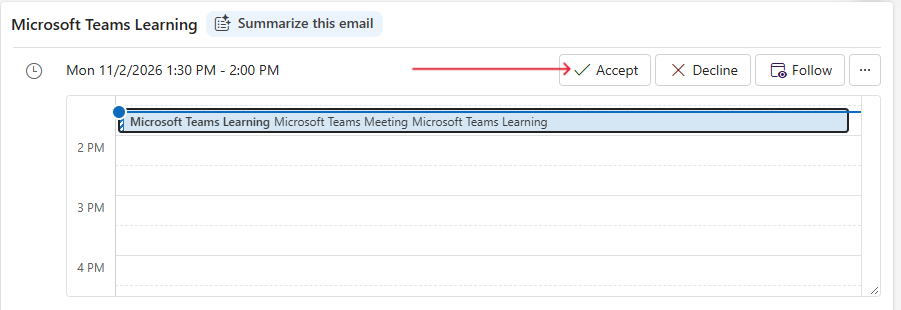
Signing into your Microsoft Teams Account.
To sign into your Microsoft Teams account please use the email address associated with your JTAC registration profile.
If you’re using a work / personal Microsoft Teams account you will have to "switch the tenant" by clicking on your profile picture and choose “Joint Training and Apprenticeship Committee”. This allows you to become a Guest user in a JTAC Virtual Class. 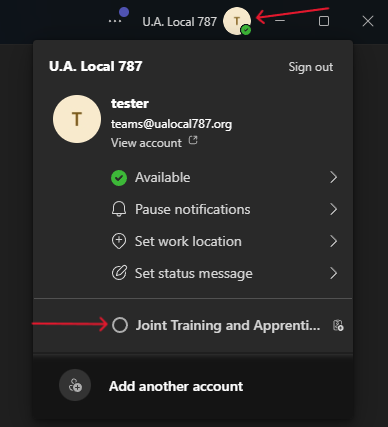
As a Guest participating in a JTAC Virtual Class you will gain access to:
Participate in channel conversations and meeting chats.
Access files shared within Teams and channels they're a member of.
Attend meetings and collaborate with internal users.
Use apps and tabs
Web Version Microsoft Teams (always updated)
https://www.microsoft.com/en-ca/microsoft-teams/log-in
Download Microsoft Teams (Keep your app updated)
https://www.microsoft.com/en-ca/microsoft-teams/download-app